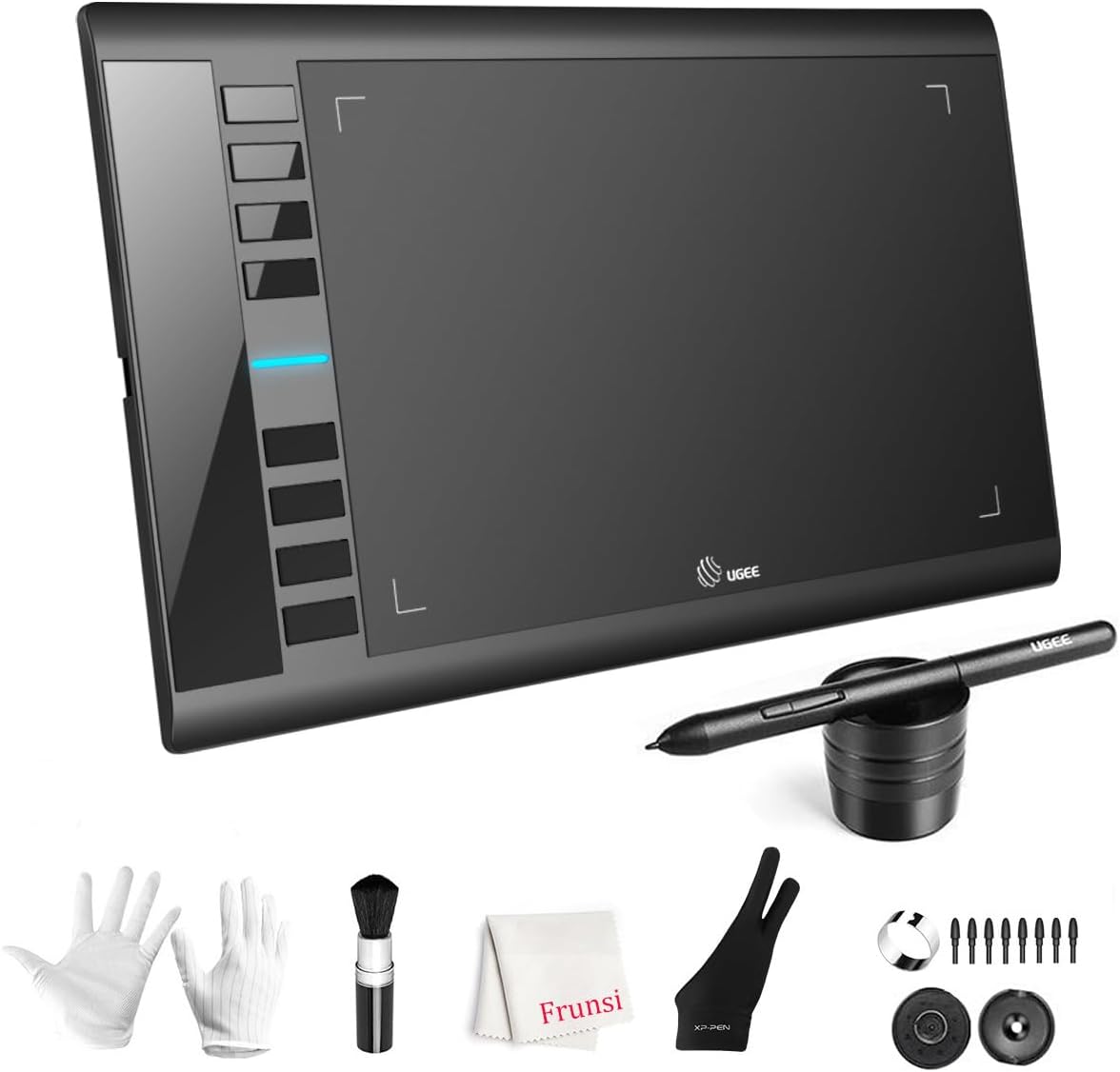
UGEE M708 Drawing Tablet
4.4Editor score
Large 10-by-6-inch surface
16,384 pressure levels
Explicit ZBrush compatibility
Eight customizable shortcut keys
A tablet for Zbrush should translate hand movement into precise sculpting strokes while keeping the screen readable and the pen responsive. The right model depends on whether you prefer drawing directly on the artwork, working on a separate monitor, or using a compact setup that travels easily between locations.
We compared all ten options by examining active area, pressure sensitivity, pen technology, display performance, shortcut controls, connectivity, compatibility, and portability. The list includes pen-only tablets, screen-equipped pen displays, and standalone tablets, so readers can compare formats rather than judging only by specifications.
Each review explains where a product is strongest, where compromises appear, and which type of artist may benefit most. The top selections range from a practical pen tablet to color-accurate displays and a portable standalone system. Product availability and pricing can change, so confirm current details before purchasing.
4.4Editor score

4.5Editor score

4.5Editor score
As an Amazon Associate we earn from qualifying purchases.
The comparison below places screen and pen-only models side by side, highlighting the physical work area, display format, pressure response, portability, and workflow controls most relevant to digital sculpting in ZBrush.


The HUION Kamvas 13 (Gen 3) earns a 4.5 rating and stands out as the most balanced pen display in this guide for ZBrush. It combines a fully laminated 13.3-inch display with 16,384 levels of pressure sensitivity, giving digital sculptors a large enough canvas for useful detail while preserving a portable profile.
We may earn a commission when you buy through this link, at no additional cost to you.
Its PenTech 4.0 pen supports a 2g initial activation force, tilt auto-alignment, and three side buttons. The full-laminated, paper-textured Canvas Glass 2.0 is designed to reduce parallax, glare, sparkle, and image noise, all of which can help maintain visual clarity when shaping fine surfaces. The display also receives factory calibration to an average Delta E below 1.5, with 99% sRGB and Rec.709 coverage and 90% Adobe RGB coverage.
Two dial controllers and five silent shortcut keys make it easier to adjust ZBrush-related controls without leaving the tablet. The left- and right-handed design is also helpful for sculptors who prefer a symmetrical setup. The compromises are inherent to this category: it is not a standalone computer, and it requires a Windows, macOS, compatible Android, or supported Linux system. Its 13.3-inch display is smaller than the Pro 16 models, although the 11.7mm body and 865g weight remain manageable.
This is the strongest general recommendation for ZBrush artists who want to draw directly on the artwork without giving up meaningful screen quality or pressure detail. It suits students, freelancers, and established sculptors who can dedicate a computer to the workflow. Those who need a completely independent tablet should look toward the standalone alternatives, while users wanting the largest work area may prefer the Kamvas Pro 16 V2.
The fully laminated construction keeps the display surface close to the pen tip, while tilt auto-alignment helps keep strokes aligned with the screen. Together, these characteristics support the small, controlled movements required for facial features, armor, and surface texture.
Dual dials and five silent press keys can be assigned to common actions such as brush adjustment, canvas navigation, opacity, and slider control. These hardware controls reduce repeated mouse movement during a detailed sculpting session.
We may earn a commission when you buy through this link, at no additional cost to you.
This HUION Kamvas 13 (Gen 3) configuration carries a 4.5 rating and offers a polished direct-drawing experience for ZBrush. Its 13.3-inch fully laminated screen is paired with anti-glare Canvas Glass 2.0, 16,384 pressure levels, and a 2g initial activation force, making it suitable for users who work with fine sculpt detail and varied brush pressure.
We may earn a commission when you buy through this link, at no additional cost to you.
The display supports 16.7 million colors, 99% sRGB coverage, Rec.709 gamuts, and factory calibration to an average Delta E below 1.5. A calibration report adds reassurance for creators judging color and material previews. For ZBrush, that visual consistency can make it easier to evaluate subtle shading, texture, and color decisions without waiting for a separate display.
Five programmable shortcut keys and dual dial buttons place frequently used adjustments within reach. The pen also has three customized side buttons, while USB-C single-cable connectivity simplifies the physical setup. The included ST300 stand permits several working angles, allowing the artist to choose between a more upright posture and a lower, tablet-like position.
This model is best for a dedicated desktop workflow where the artist wants to sculpt directly in front of the model. It has the same essential limitation as other pen displays: it must be connected to a computer or laptop. Buyers should therefore account for a suitable workstation and verify their ZBrush configuration before making a final choice.
Factory calibration and broad sRGB and Rec.709 coverage help the display present colors consistently. This is particularly useful when evaluating painted textures, polypaint choices, and material previews in ZBrush.
A single USB-C connection reduces cable clutter at the desk, while the adjustable stand offers a practical range of viewing positions. That makes this a comfortable center for long sculpting sessions.
We may earn a commission when you buy through this link, at no additional cost to you.
The HUION KAMVAS Pro 16 has a 4.5 rating and prioritizes screen area for ZBrush artists who want to see an entire model while keeping the hand-to-screen relationship intuitive. Its 15.6-inch full-laminated anti-glare display is large enough to show more of the canvas than the 13.3-inch Kamvas models.
We may earn a commission when you buy through this link, at no additional cost to you.
The battery-free PW507 pen provides 8,192 pressure levels and 60-degree tilt support. A stated 266PPS report rate is intended to produce smooth line response, while the lamination minimizes parallax and anti-glare treatment improves visibility in bright environments. The screen supports 120% sRGB color gamut volume and 16.7 million colors for digital artwork viewing.
Six express keys and a programmable touch bar can handle zooming, brush adjustments, and page scrolling. The screen can also support teaching, remote work, and screen sharing, though those functions sit outside the central ZBrush use case. Compatibility extends across Windows, macOS, and Linux, and the tablet works with mainstream drawing software.
The main drawback is that this is not a standalone tablet; a computer is mandatory. Its 8,192 pressure levels also trail newer 16,384-level options, though pressure resolution alone does not determine sculpting quality. Artists who value a large direct-drawing canvas, anti-glare visibility, and customizable controls will find this model especially compelling.
The 15.6-inch display provides a wider working context than compact tablets, which can reduce frequent zooming when inspecting anatomy, symmetry, and repeated surface details.
Six express keys and a touch bar place common navigation and brush functions close to the drawing hand. The 266PPS pen report rate also supports fluid line rendering for detailed sculpt work.
We may earn a commission when you buy through this link, at no additional cost to you.
The UGEE M708 carries a 4.4 rating and is the strongest value-oriented choice in the list for ZBrush. It provides a generous 10-by-6-inch active drawing space, 16,384 pressure levels, and eight customizable express keys, all of which support precise sculpting without the expense of a screen-equipped tablet.
We may earn a commission when you buy through this link, at no additional cost to you.
The supplied passive stylus uses pressure to vary line weight and opacity. That makes it useful for establishing different sculpt marks, from delicate detail lines to stronger shaping strokes. The papery texture surface is also designed to improve the feel of the pen while preserving a smooth drawing experience.
UGEE specifically lists Pixologic ZBrush among the creative applications supported by the tablet driver. It also works across Windows, macOS, Android, Chrome OS, and Linux, with USB-to-USB-C connectivity and included adapters for common setups. The eight side keys can be assigned to functions such as eraser, zoom, scrolling, and undo, reducing reliance on the keyboard.
The central compromise is that the M708 has no display, so artists must look at a separate computer or tablet screen. That separation is not a flaw for every workflow, and many experienced digital artists prefer it because it creates more desk space and allows a larger external display. This is a practical recommendation for beginners, students, and ZBrush users who want dependable pen input at a lower cost.
A 10-by-6-inch active area gives the hand enough room for broad sculpting movements and fine adjustments. Working from a separate monitor preserves desk flexibility and can be more comfortable on larger displays.
The inclusion of ZBrush in the listed compatible software is especially relevant. USB and USB-C adapters also make the tablet accessible to a broader range of current computer configurations.
We may earn a commission when you buy through this link, at no additional cost to you.
The HUION Kamvas Pro 16 V2 has a 4.5 rating and is the most premium-focused pen display in this roundup. Its 15.6-inch full-laminated anti-glare screen, battery-free PW600A pen, 16,384 pressure levels, and 5,080 LPI resolution create a high-detail platform for ZBrush sculpting and retouching.
We may earn a commission when you buy through this link, at no additional cost to you.
The laminated display is designed to minimize parallax and reproduce a paper-like texture, helping the pen tip feel more closely connected to the displayed model. Color support includes 99% sRGB, 99% Rec.709, 16.7 million colors, and wide 178-degree viewing angles, which helps maintain a consistent image when the artist changes position.
Workflow controls are a major strength. Six fully customizable express keys and a Smart Touch Bar can be assigned to zoom, brush size, scrolling, and other frequent commands. The three-in-one cable and recessed Type-C port simplify setup and help prevent accidental disconnections during long sessions.
This is also a pen display rather than a standalone tablet, and the product information specifically notes that it is not a touchscreen. Its slim 0.453-inch profile, 2.65-pound weight, and included ST200 aluminum stand make it more portable than many large displays. It is best for professionals and advanced hobbyists who want a large, highly responsive, direct-drawing surface and already have a suitable computer.
The combination of 16,384 pressure levels and 5,080 LPI resolution supports fine line variation and precisely rendered details. That makes the pen well suited to subtle sculpting, alphas, and texture work.
Customizable express keys, a Smart Touch Bar, and a clean three-in-one cable make the large display manageable. The thin aluminum construction and adjustable stand support both fixed studio use and temporary setups away from the desk.
We may earn a commission when you buy through this link, at no additional cost to you.
The Wacom Intuos Medium Bluetooth has a 4.5 rating and offers a familiar, dependable pen-only approach to ZBrush. It uses Wacom EMR battery-free pen technology, which is intended to provide a natural pen-on-paper feel while supporting detailed drawing, painting, photo editing, and digital design tasks.
We may earn a commission when you buy through this link, at no additional cost to you.
Its defining advantage is flexibility. Bluetooth allows the tablet to be used away from the computer, while a USB-A cable provides a wired alternative. That makes it convenient for sketching concepts away from a desk, arranging a compact mobile workstation, or changing positions without permanently moving the computer.
The medium format offers more room than the small Intuos model without approaching the footprint of a large pen display. Wacom states that the tablet can be used with software programs, and registration provides access to creative software and online training. This broad software support is reassuring for ZBrush users, although ZBrush should still be installed and configured on the connected computer.
There is no screen, so the artist must work while looking at another display. Bluetooth operation may also require a charged tablet battery, whereas the cable is always available. The Wacom Intuos Medium is most attractive to artists who value pen quality, wireless flexibility, and a conventional drawing-tablet experience over direct-on-screen sculpting.
Bluetooth lets the pen tablet sit where it is most useful rather than directly beside the computer. Artists can sketch concepts on a couch, at a class, or around a shared workspace and connect when ready to work in ZBrush.
Wacom's battery-free EMR technology is the central attraction. It avoids the need for a rechargeable stylus and provides the kind of direct, pressure-sensitive input central to digital illustration and sculpting.
We may earn a commission when you buy through this link, at no additional cost to you.
The RubensTab T11 Pro has a 4.4 rating and is one of two clearly standalone options in the guide. Its 10.1-inch Full HD IPS display operates independently, allowing an artist to sketch, illustrate, and edit photos without keeping a computer nearby. That independence is its defining benefit for mobile learning and concept development.
We may earn a commission when you buy through this link, at no additional cost to you.
A high-sensitivity, battery-free pressure pen provides natural strokes, while multi-touch supports zooming, panning, and scrolling. The built-in 5,800mAh battery is stated to deliver up to five hours of continuous use, and USB-C charging provides a convenient way to replenish it. A power bank can also extend operation while traveling.
The tablet arrives with preinstalled professional-grade drawing applications and an adjustable stand case. It can serve as a digital sketchbook, classroom tool, meeting-note device, or portable art station. Compatibility with Wi-Fi also allows access to tutorials, cloud storage, and other online resources without a separate monitor.
The important limitation is that the supplied information does not specifically identify ZBrush as installed or guaranteed to run on this standalone system. Sculptors should confirm operating-system and application compatibility before buying it for professional ZBrush work. It is best viewed as a portable creativity tablet and a possible companion to a desktop-based ZBrush workflow rather than the safest dedicated choice for the main program.
The internal battery, Wi-Fi capability, and preinstalled creative applications create a self-contained environment for sketching away from a studio. This is useful for concept development, lessons, and travel.
The T11 Pro can capture early ideas without occupying the main workstation. Artists can then refine those concepts in a full ZBrush environment after returning to a compatible computer.
We may earn a commission when you buy through this link, at no additional cost to you.
The Wacom Intuos Small Bluetooth carries a 4.4 rating and provides a compact pen platform for ZBrush users with limited desk space. Its main appeal is portability: the tablet can operate through Bluetooth or a USB-A cable, allowing the user to reposition it or take it to another location.
We may earn a commission when you buy through this link, at no additional cost to you.
The included EMR pen is battery-free and supports the pressure-sensitive, pen-on-paper experience for which Wacom is known. The tablet can be used for drawing, painting, photo and video editing, design, and document markup. Registration also provides access to creative software and Wacom's online training resources.
Its small surface makes it best for a desk where a separate monitor is already in use. The artist sees ZBrush on that display while controlling the brush with the tablet, and the wireless connection removes a cable from the immediate workspace. A small tablet is also less disruptive when switching between sculpting and note-taking.
The trade-off is a smaller active area than the M708 or Wacom Intuos Medium. Fine detail can be comfortable, but broad sculpting gestures may require more hand movement, and frequent zoom changes can interrupt concentration. This model is best for a compact ZBrush setup, a student learning digital sculpting, or an artist who values wireless freedom over a large pen-only surface.
The compact format is easy to keep beside a laptop or position in front of a larger monitor. Bluetooth operation further reduces the visual clutter of a permanently attached tablet.
Wacom's pen technology and included training resources create an approachable entry point. A new ZBrush user can practice strokes and pressure control without starting with a large display.
We may earn a commission when you buy through this link, at no additional cost to you.
The Wacom Intuos Small Wired has the highest rating in the group at 4.6, making it a notable entry-level choice for ZBrush. It uses the same battery-free EMR approach associated with Wacom's pen tablets, delivering direct pressure-sensitive input without requiring the pen to be charged.
We may earn a commission when you buy through this link, at no additional cost to you.
The wired connection keeps setup simple and removes uncertainty associated with wireless pairing. It is a sensible choice for a stationary computer, a classroom, or a shared studio where reliability matters more than mobility. The tablet supports a broad range of software and can be used for drawing, painting, editing, and design in addition to sculpting.
Users receive access to creative software and Wacom online training after registering the tablet. That is useful for someone who is new to digital art because it provides both the hardware and learning resources needed to begin practicing. The pen's pressure response can help artists learn how lighter and heavier marks translate into different ZBrush brush strengths.
The small active area and fixed cable are the meaningful limitations. Artists accustomed to broad sculpting movements may find the Intuos Medium more comfortable, while mobile users may prefer its Bluetooth sibling. Even so, the 4.6 rating, straightforward setup, and mature EMR pen technology make this wired Intuos a dependable choice for learning and focused desktop ZBrush work.
A wired tablet removes pairing steps and keeps the input path consistent. It is a low-friction option for a permanent desk where ZBrush and its driver can remain installed.
The battery-free EMR pen responds to applied pressure, helping artists translate lighter touches into finer marks and stronger touches into broader sculpt strokes without managing a charging routine for the stylus.
We may earn a commission when you buy through this link, at no additional cost to you.
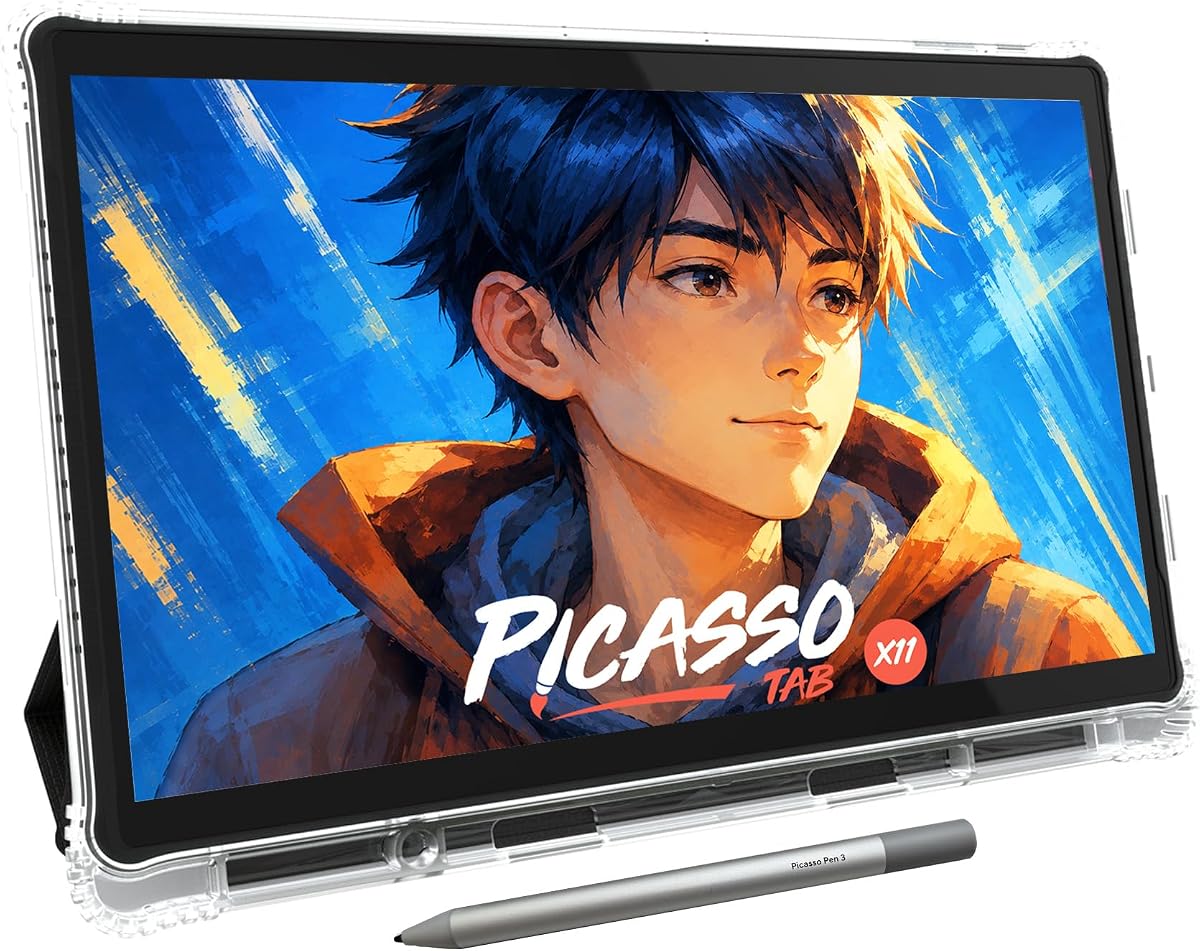
The PicassoTab X11 earns a 4.2 rating and offers standalone creativity in a larger format than the other independent tablet in the list. Its 11-inch 2K fully laminated display reduces parallax and glare, while the 4,096-level pressure stylus supports sketching, shading, and illustration with a more natural hand-to-screen response.
We may earn a commission when you buy through this link, at no additional cost to you.
The tablet runs on an octa-core processor with 6GB of RAM and 128GB of expandable storage. These specifications give it more general-purpose capability than many drawing-only devices, allowing it to handle drawing applications, schoolwork, streaming, and multitasking. Five preloaded creative applications and two lifetime app upgrades support immediate learning and experimentation.
For beginners, the included tutorials, guided exercises, drawing guides, and instant-help features may be especially valuable. The package also includes a case, drawing glove, universal adapter, and preinstalled screen protector. A one-year warranty and certification to GMS, FCC, and CE standards add support and quality assurance.
For ZBrush specifically, the absence of a stated ZBrush compatibility claim requires caution. The X11 may be useful as a portable sketch and concept tablet, but artists who need ZBrush for their primary work should first verify that the operating system and required application can run as expected. Its lower pressure count and more general-purpose design also make it less specialized for intensive sculpting than a pen tablet or pen display.
The 2K laminated display, expandable storage, and general-purpose processor make the X11 more than a simple drawing slate. It can support lessons, reference material, and a broader range of creative applications.
Preloaded apps, guided lessons, drawing guides, and lifetime upgrades reduce the setup burden for new artists. These features make the tablet approachable for practice before moving into a professional sculpting workflow.
We may earn a commission when you buy through this link, at no additional cost to you.
The best tablet for Zbrush depends on screen preference, pen responsiveness, work habits, and compatibility. These factors help separate a dedicated sculpting display from a portable sketch device or a conventional pen tablet.
A pen-only tablet sends strokes to a separate computer display, while a pen display draws directly beneath the pen. ZBrush artists who prefer the direct relationship between hand position and model will usually find a pen display more natural, although a pen-only model can provide a larger monitor and more desk space. Standalone tablets are different again because they do not require a separate computer, but buyers must verify that ZBrush is available and supported on the tablet's operating system.
In short, choose a pen display for direct sculpting, a pen tablet for a monitor-based studio, and a standalone tablet only after confirming ZBrush compatibility.
Pressure sensitivity lets a ZBrush artist vary the strength of a stroke, which is valuable for building form, adding fine texture, and controlling brush behavior. Models in this guide range from 4,096 to 16,384 pressure levels. More levels provide finer numerical resolution, but the complete input experience also depends on the pen tip, tracking, stability, and how naturally the pressure ramps.
Prioritize a responsive pen with a low initial activation force, reliable tracking, and tilt support if your work includes angled strokes. Treat the pressure-level figure as one part of overall control rather than the only measure of quality.
A larger screen provides more room to view a model, navigate subtools, and work on fine details without frequent zooming. The 13.3-inch Kamvas models balance portability and workspace, while the 15.6-inch Pro 16 options offer a broader canvas. Full lamination is particularly valuable because it reduces the visual separation between the pen tip and cursor.
Choose a compact display for travel or a large laminated display for stationary work. Artists who struggle with hand-eye calibration should place extra weight on low parallax and accurate tracking.
ZBrush is used for sculpting, but it also supports painting, texture work, and material presentation. Accurate color therefore matters for evaluating polypaint, alphas, and surface designs. Features such as factory calibration, sRGB or Rec.709 coverage, anti-glare coatings, and wide viewing angles help maintain consistency.
Prioritize calibrated sRGB performance if color decisions are central to your work. If your primary focus is monochrome form sculpting, display quality is still useful but less critical than pen tracking, screen lamination, and workflow controls.
Active area is the usable portion of a pen tablet, not the entire device. The UGEE M708 offers 10 by 6 inches, while compact Wacom Intuos models require more hand movement for broad gestures. A display tablet makes the distinction less important because the screen itself defines the work area. Portability depends on thickness, weight, battery support, and whether a cable is permanently required.
Select a larger active area for long sculpting sessions and a compact model for small desks or travel. Standalone options add wireless freedom but may be less specialized for ZBrush.
Sculpting often involves repeated changes to brush radius, opacity, stroke size, masking, and canvas position. Express keys, dials, and touch bars can place those commands under the artist's hand. HUION's 13.3-inch models provide dual dials and five keys, while the Pro 16 V2 adds six customizable express keys and a Smart Touch Bar.
Shortcuts are valuable when they can be customized for your own ZBrush layout. Check the software support and assignment process, and avoid paying for controls that are difficult to configure or that duplicate a keyboard you already use comfortably.
The UGEE M708 explicitly lists Pixologic ZBrush among compatible creative software, making it the clearest dedicated ZBrush match among the pen-only options. Pen displays are described as compatible with mainstream drawing software, while their systems include Windows, macOS, and Linux in various configurations. Standalone products require more caution because the supplied information does not explicitly confirm ZBrush support.
Always verify the exact ZBrush version, operating system, driver requirements, and application availability before purchase. A beautiful screen is not enough if the sculpting software cannot run reliably.
A direct-drawing display may occupy more desk space than a pen tablet, but it can remove the need to look back and forth between separate input and monitor devices. Pen-only models preserve room for a larger display and can use Bluetooth to simplify the workspace. Standalone tablets remove computer and power-cable requirements at the desk, making them useful for travel and classes.
Plan the complete workspace before choosing. Compare the physical footprint, stand, cable arrangement, computer placement, and whether you need to work away from a fixed station.
Begin by placing the tablet in a stable position directly in front of the display used for ZBrush. For a pen-only model, keep the active area within the natural sweep of the drawing hand and use a separate monitor as the visual guide. For a pen display, place it near the center of the workspace and adjust the stand so the screen sits comfortably without forcing the wrist or shoulder.
Install the manufacturer's driver and current ZBrush release, then create a short calibration and pressure test. Draw slow lines, gradual pressure ramps, small curves, and repeated dots. Check cursor alignment, diagonal tracking, palm rejection, and the transition from light to heavy pressure. Once the settings feel consistent, create a test sculpt that combines broad forms with small details rather than judging only simple lines.
Keep the pen nib from scraping the surface and replace the nib before it becomes excessively rough. Keep the pen cord or tablet connection free of sharp bends, clean the active area with a soft dry or lightly damp cloth, and avoid liquids that could damage the coating. Store a pen tablet away from heat and moisture, and protect a portable display in its case during transport. Update drivers and application software periodically, especially after major system changes.
No. ZBrush can be controlled with a pen-only tablet connected to a computer. Many artists prefer this arrangement because it provides more desk space and lets them use a larger monitor. A pen display is still advantageous when you want the tip, cursor, and sculpted model to appear directly together with minimal parallax.
The UGEE M708 specifically lists Pixologic ZBrush among its compatible creative software. The pen displays support mainstream drawing applications, but ZBrush installation still depends on the connected computer and the tablet driver. The standalone models do not have stated ZBrush support, so confirm the operating system and application requirements before purchasing one for professional sculpting.
More pressure levels provide finer pressure resolution, but they do not guarantee a better sculpting experience. Pen tracking, tip feel, initial activation force, stability, and your control technique can have a greater practical effect. A well-tuned 8,192-level tablet may still feel excellent, while a poorly configured 16,384-level device may not.
A 13.3-inch model is easier to carry and usually leaves more room for a keyboard, while a 15.6-inch display shows more of the ZBrush canvas. Artists who work on small details may still prefer the larger display because they can see more surrounding anatomy. Your available desk space and preferred posture should guide the decision.
Only if the required ZBrush version and its operating-system requirements are supported by that tablet. The standalone tablets in this guide are designed for independent drawing, but their supplied information does not confirm ZBrush compatibility. Treat them as portable sketch or learning tools unless current documentation explicitly confirms otherwise.
Pressure sensitivity measures how hard the pen is pressed and changes the strength of a stroke. Tilt support recognizes the angle at which the pen is held, which can affect the shape or behavior of a mark in compatible software. Tilt is useful for broad shading and varied mark-making, but correct pressure control remains more important for many ZBrush workflows.
Express keys are convenient but not essential. They can accelerate repeated commands that would otherwise require the keyboard, such as undo, zoom, masking, or brush adjustments. If you are comfortable using the keyboard and prefer a simpler tablet, prioritize pen tracking, active area, and display quality instead.
Test cursor alignment at the center and edges, diagonal movement, light and heavy pressure, and rapid strokes. Then create a test sculpt with a smooth curved form, a sharp edge, and a few tiny details. Adjust the pen nib, driver settings, and hand position before transferring that tablet to a long project.
The HUION Kamvas 13 (Gen 3) stands out as the strongest all-around recommendation, combining a laminated 13.3-inch display, 16,384 pressure levels, accurate color, and useful dials and keys. The Kamvas Pro 16 V2 is the premium choice for professionals who want a larger workspace, 5,080 LPI pen resolution, and extensive physical controls, while the UGEE M708 is the best budget pick for a capable pen-only setup with explicit ZBrush support.
Prioritize the way you actually sculpt. Choose a pen display if direct hand-to-model positioning matters, a pen-only tablet if a separate large monitor and a simpler desk are preferable, and a standalone tablet only if the operating system and ZBrush compatibility have been confirmed. Screen size, pressure range, shortcut controls, portability, and the need for a computer should all be weighed against your own workflow.
Ratings, software compatibility, device availability, and pricing can change over time, so check the current product listing before ordering. Most importantly, confirm the computer configuration, install the latest driver, and test the tablet with a short ZBrush sculpt. A short setup session can reveal alignment or comfort issues that specifications alone cannot show.