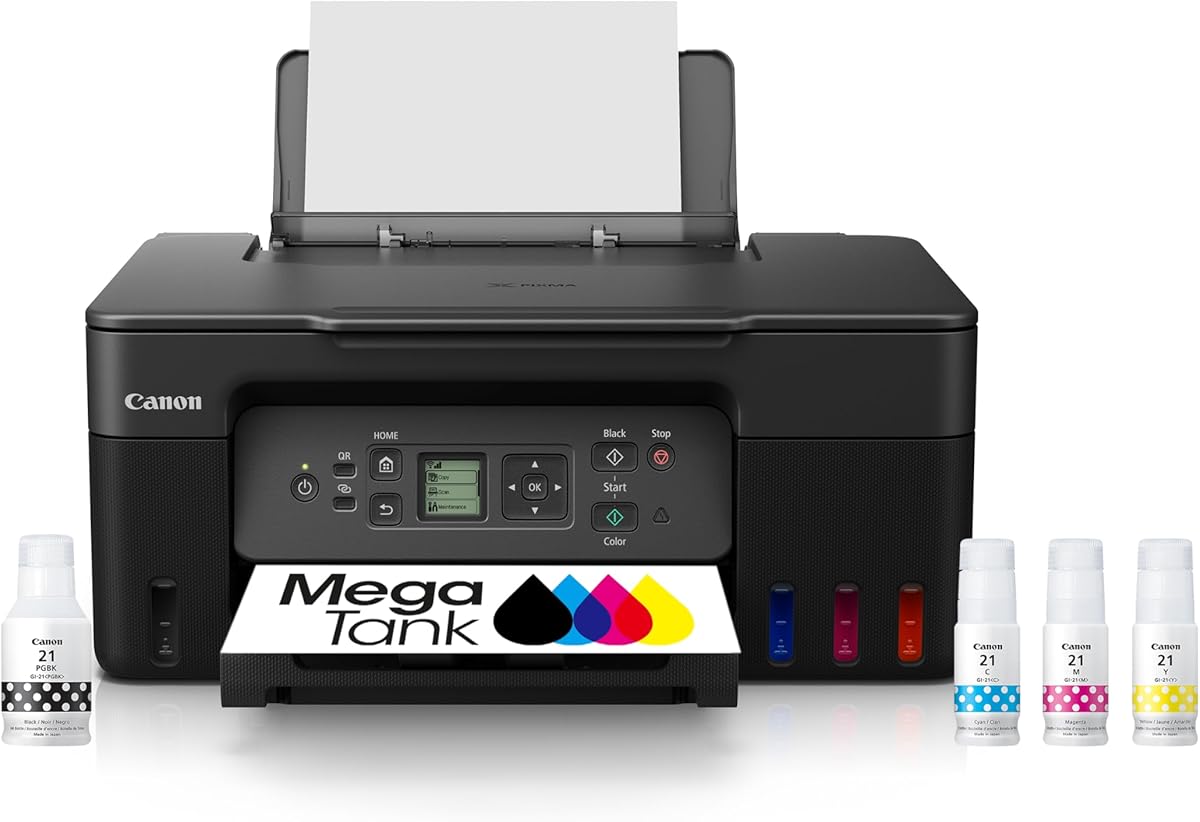
Canon MegaTank G3270
4.1Editor score
High-volume ink efficiency
Wireless print, scan, copy
Compact square LCD
An office printer for Windows should do more than produce sharp pages. It should connect reliably to a PC, work smoothly with common Windows applications, handle recurring document jobs, and offer the scanning, copying, and mobile features needed by a home office or small business.
The printers in this guide were compared using the supplied product specifications. We considered Windows and wireless compatibility, printing speed, automatic duplexing, document feeders, paper capacity, controls, app support, output quality, and the practical value of each feature set.
Each pick represents a different use case, from a basic home model to business-oriented all-in-ones. The first three receive our top-pick designations, while the remaining reviews explain the strengths and limitations of every model. Product availability and prices can change, so confirm current details before buying.
4.1Editor score

4.0Editor score

3.8Editor score
As an Amazon Associate we earn from qualifying purchases.
This side-by-side comparison highlights the functions that matter most for Windows users, including wireless connectivity, duplexing, document feeding, paper capacity, controls, and supported office workflows.





The Canon PIXMA TS6520 combines a 4.2 rating with a balanced set of features for home offices and hybrid workers. It handles color documents and photos, copies, scans, automatic duplex printing, and wireless access from computers or mobile devices without taking up much room.
We may earn a commission when you buy through this link, at no additional cost to you.
Its strongest selling point is the combination of dual-band Wi-Fi and automatic two-sided printing. The printer can operate on either 2.4GHz or 5GHz networks, while duplexing reduces the paper consumed by routine documents. A 1.42-inch monochrome OLED display provides quick access to ink status and printer settings, and the Canon PRINT App, Apple AirPrint, and Mopria Print Service support convenient mobile printing.
The main limitation is the absence of an automatic document feeder, so multipage scans and copies require manual page placement. It also lacks fax capability, which could matter for offices that still handle physical documents through a traditional fax workflow. These omissions are reasonable for users who mainly print from a Windows PC and occasionally scan or copy shorter documents.
Overall, the TS6520 is the strongest general-purpose recommendation in this guide. It is particularly well suited to Windows users who want polished color output, reliable wireless connectivity, automatic duplexing, and a compact footprint without paying for a larger office-oriented machine.
This model supports both traditional computer printing and mobile workflows, making it easy to move between a desk, home office, and shared workspace. Its compact construction also helps preserve usable room around the printer.
Automatic two-sided printing is valuable for reports, reference materials, and other lengthy documents. It reduces paper consumption and gives routine office work a more professional finished appearance.
We may earn a commission when you buy through this link, at no additional cost to you.
The HP OfficeJet Pro 9125 earns a 4.0 rating and is built for offices that need more than basic desktop printing. It supports printing, scanning, copying, and faxing, with an automatic document feeder, duplex print and scan, and a color touchscreen for direct control.
We may earn a commission when you buy through this link, at no additional cost to you.
Its performance specifications make it a compelling choice for busy workspaces. HP lists speeds up to 22 pages per minute in black and 18 pages per minute in color, while the 250-sheet tray reduces the need for frequent refills. The automatic document feeder streamlines longer scans and copies, and HP AI formatting helps prevent unwanted web or email content from wasting pages.
The included three-month Instant Ink trial is optional rather than a permanent requirement, but users should understand the service terms and cancellation process before enrolling. The printer is also intended to work only with cartridges containing original HP chips or circuitry. That restriction may matter for buyers who want maximum flexibility in cartridge sourcing.
For Windows offices handling presentations, brochures, flyers, faxes, and recurring document workflows, the OfficeJet Pro 9125 provides the most complete feature set here. It is a strong choice when speed, capacity, and integrated functions matter more than a compact footprint or the lowest ongoing ink cost.
The combination of a 250-sheet tray, automatic document feeder, and duplex scanning makes this printer well suited to recurring office tasks. It reduces the amount of manual intervention needed for multi-page sets.
The 2.7-inch color touchscreen provides a clearer interface than a small monochrome display. Users can navigate settings directly on the printer or use the HP app for printing, scanning, copying, and faxing.
We may earn a commission when you buy through this link, at no additional cost to you.
The HP DeskJet 2923 has a 3.7 rating and focuses on uncomplicated printing for letters, financial documents, recipes, to-do lists, and other everyday color jobs. It combines printing, copying, and scanning with wireless and mobile support in a compact design.
We may earn a commission when you buy through this link, at no additional cost to you.
For a light-duty office, the core feature set is easy to appreciate. The printer reaches claimed speeds of up to 7.5 pages per minute in black and 5.5 pages per minute in color. An icon LCD, the HP app, and HP AI formatting simplify common tasks, while dual-band Wi-Fi can improve network reliability in busy environments.
Its 60-sheet input tray is small for sustained office printing, and the lack of automatic duplexing means multipage documents must be turned manually. The supplied specifications also do not mention an automatic document feeder, so large scanning or copying jobs will require more hands-on attention.
The DeskJet 2923 is best for a home user or occasional worker who wants essential color printing, scanning, copying, and wireless access without a large office printer. Users with regular volume or a need for automatic duplexing should move to a more capable model.
The simple icon display and familiar app-based controls keep the DeskJet 2923 approachable. It is a practical option for routine letters, lists, recipes, and personal color projects.
Dual-band Wi-Fi and mobile printing support make it convenient to begin printing from a Windows computer or nearby mobile device. Automatic Wi-Fi issue resolution is another useful detail for shared home networks.
We may earn a commission when you buy through this link, at no additional cost to you.
The HP OfficeJet Pro 8125 combines a 3.9 rating with capabilities aimed specifically at home offices. It prints professional-quality color documents, scans, copies, and includes an automatic document feeder and automatic two-sided printing for more efficient daily workflows.
We may earn a commission when you buy through this link, at no additional cost to you.
HP lists print speeds up to 20 pages per minute in black and 10 pages per minute in color. Its 225-sheet input tray is generous for a home-office printer, and the 2.7-inch color touchscreen gives users a dedicated interface for status checks and configuration. The HP app extends printing, scanning, and copying to a smartphone.
Unlike the OfficeJet Pro 9125, fax is not included in the listed functions. There is also a cartridge-chip restriction requiring original HP chips or circuitry, and the Instant Ink trial includes enrollment terms that should be reviewed carefully. These constraints do not affect basic use, but they deserve consideration before purchase.
The OfficeJet Pro 8125 is an excellent choice for someone who needs faster output, a document feeder, and duplexing in a home office. It bridges the gap between a compact home printer and a fuller business all-in-one without requiring a large footprint.
Claimed speeds of up to 20 pages per minute in black make this model well suited to reports and longer documents. The color capability also supports presentations, flyers, and business materials.
The automatic document feeder and automatic duplex printing work together to reduce manual handling. These are important features for users who regularly scan, copy, or print multipage files.
We may earn a commission when you buy through this link, at no additional cost to you.
The HP DeskJet 2955 has a 3.7 rating and belongs to HP's approachable DeskJet line. Its wireless color inkjet format and all-in-one positioning make it a natural fit for a home office that needs printing, copying, and scanning in a compact unit.
We may earn a commission when you buy through this link, at no additional cost to you.
The supplied information confirms the core product identity, wireless capability, color inkjet design, and all-in-one configuration. These details already distinguish it from a basic single-function printer and make it suitable for users who want several office functions in one place.
The product data provides much less detail than it does for the other models in this guide. It does not specify paper capacity, print speed, duplexing, an automatic document feeder, display size, or app compatibility. Buyers should therefore verify those details before assuming the DeskJet 2955 can support sustained workloads.
This printer is best for a modest home office or a user who values a familiar HP design, wireless access, and an all-in-one format without requiring advanced business features. It is less suitable when exact throughput and document-handling specifications are the deciding factors.
Combining print, copy, and scan functions in one wireless unit helps conserve desk space. That makes the DeskJet 2955 a sensible fit for home offices with limited room.
Because the supplied product details are limited, prospective buyers should check the current listing for tray size, speed, duplexing, and feeder availability. Those factors determine whether it fits a demanding workflow.
We may earn a commission when you buy through this link, at no additional cost to you.
The Canon MegaTank G3270 has a 4.1 rating and stands out for ink efficiency rather than advanced document handling. It is an attractive choice for Windows users who print frequently and want the reduced refill demands associated with a MegaTank-style system.
We may earn a commission when you buy through this link, at no additional cost to you.
Canon states that a single set of inks can produce up to 6,000 black-and-white pages or 7,700 color pages. The printer supports wireless printing, copying, and scanning, and a 1.35-inch square LCD provides a straightforward way to review settings and status. Those capacity figures make it especially relevant to users producing reports, schoolwork, invoices, or colorful reference material.
The major drawback is single-sided printing. There is no automatic duplexing, and the supplied specifications do not mention an automatic document feeder. Multipage documents therefore take more time and hands-on effort than they would with an office model built around a feeder and automatic two-sided printing.
Despite those limitations, the G3270 may be the most economical choice for high-volume users over time. It is best for buyers who prioritize wireless all-in-one functions, generous ink capacity, and lower refill frequency rather than advanced paper handling.
The stated page yields of up to 6,000 black-and-white pages or 7,700 color pages make the G3270 well suited to frequent document production. It is particularly appealing for households that print school projects or office materials every week.
Wireless printing, copying, and scanning cover the essentials of a small office. The compact LCD keeps on-device operation understandable without adding the complexity of a larger business touchscreen.
We may earn a commission when you buy through this link, at no additional cost to you.
The Canon PIXMA TR4720 has a 3.9 rating and is one of the few models here with a built-in fax function. It combines printing, copying, scanning, and faxing with wireless access, an automatic document feeder, and automatic two-sided printing.
We may earn a commission when you buy through this link, at no additional cost to you.
Its document handling features are especially useful for home offices that still receive physical paperwork. The automatic document feeder supports multipage scanning and copying, while duplex printing reduces paper use. Canon lists letter-document speeds of approximately 8.8 black pages per minute and 4.4 color pages per minute, plus borderless photo printing up to 4 by 6 inches.
The 100-sheet paper capacity is smaller than the 225- and 250-sheet options offered by the HP OfficeJet Pro models, and the black-document speed is modest. The model also has a one-year limited warranty and is ENERGY STAR certified, but the overall throughput is better suited to occasional office use than continuous business volume.
The TR4720 is best for users who specifically need fax, mobile printing, and an automatic feeder in a home-oriented all-in-one. Its broad set of functions makes it more versatile than a basic printer, while its slower output and smaller tray keep it below the premium office models.
Built-in fax gives the TR4720 an advantage in offices that still rely on traditional document transmission. The feature is increasingly uncommon among compact home printers.
Users can connect the printer to Alexa for low-ink notifications and can enroll in smart reorders. The listing states that no subscription is required for this smart-reorder enrollment.
We may earn a commission when you buy through this link, at no additional cost to you.
The Canon PIXMA TS6420a has a 3.8 rating and offers a straightforward wireless all-in-one for home or work. It provides printing, copying, and scanning, with setup designed to be simple and direct for users who want a practical desk printer without a large business workflow.
We may earn a commission when you buy through this link, at no additional cost to you.
The 1.44-inch OLED window gives users an at-a-glance view of printer information, while the option to feed paper from the front simplifies loading and replenishment. Wireless connectivity eliminates the need to remain physically beside the machine, and Alexa compatibility adds another route for monitoring and routine management.
Automatic duplexing and an automatic document feeder are not listed, so those are the two most important limitations to consider. Long documents will not be printed on both sides automatically, and multipage scans or copies will need manual sheet handling. The available specifications also do not state a paper capacity or print speed.
The TS6420a is best for someone who wants simple wireless printing, copying, and scanning in a compact footprint. It suits lighter workloads and users who value easy setup and front access to the paper more than advanced automated document handling.
Front and rear paper feeding give users flexibility in how the printer is positioned. The front feed is particularly helpful when replacing paper or checking the tray without moving the unit.
The 1.44-inch OLED window presents status information without the learning curve of a full touchscreen. It is a practical middle ground for a compact home-office printer.
We may earn a commission when you buy through this link, at no additional cost to you.
The Canon PIXMA TR7120 carries a 4.2 rating and is a strong all-around choice for hybrid workers. It combines color printing, copying, scanning, automatic duplexing, and a 20-sheet automatic document feeder while retaining a compact home-office design.
We may earn a commission when you buy through this link, at no additional cost to you.
The feeder is the feature that most clearly separates the TR7120 from basic compact models. It allows multipage documents to be scanned or copied with less manual intervention, while automatic two-sided printing helps conserve paper. Dual-band Wi-Fi supports stable connections, and the Canon PRINT App, Apple AirPrint, and Mopria Print Service make wireless printing flexible across devices.
The printer does not include fax, and the supplied product information does not state a paper input capacity. Its 1.42-inch monochrome OLED remains easy to read, though users who want richer on-device controls may prefer a color touchscreen such as those on the HP OfficeJet Pro models.
The TR7120 is an excellent recommendation for a Windows user who wants scanning and duplexing without accepting the size of a full business printer. It is particularly suitable for hybrid workers managing both short daily tasks and occasional multipage documents.
The 20-sheet automatic document feeder is valuable for recurring multipage work. It allows a home office to handle longer documents without turning the printer into a bulky enterprise model.
Support for the Canon PRINT App, Apple AirPrint, and Mopria Print Service gives Windows users several paths for sending jobs. The printer can be shared conveniently from compatible phones, tablets, and computers.
We may earn a commission when you buy through this link, at no additional cost to you.
The Brother Work Smart 1360 has a 3.8 rating and differentiates itself with a large color display, broad cloud connectivity, and a feature set designed for home offices. It supports printing, scanning, and copying through a compact wireless all-in-one.
We may earn a commission when you buy through this link, at no additional cost to you.
Its 1.8-inch color display is larger and more interactive than the small monochrome OLED screens on several competing models. The printer can print from and scan to Google Drive, Dropbox, Box, OneDrive, and other popular cloud services. Brother Mobile Connect adds menu navigation, device management, and ink monitoring through the Page Gauge feature.
Automatic duplex printing, a 20-sheet single-sided ADF, and a 150-sheet tray create a capable office workflow. Claimed speeds reach up to 16 pages per minute in black and 9 pages per minute in color, with wireless or USB connection options. Fax is not included, and the listed purchase cost is higher than that of the other models.
The Work Smart 1360 is best for users who place a premium on cloud workflows, a polished touchscreen interface, and flexible connectivity. It is a strong home-office investment when seamless mobile management and direct access to cloud-hosted documents matter as much as printing performance.
Direct support for major cloud storage platforms makes the printer useful for distributed documents. Users can send files to printing or scanning destinations without navigating a complicated file-transfer process.
Brother Mobile Connect lets users monitor ink usage from a mobile device. This can make cartridge planning easier and reduce the chance of an unexpected interruption during an important print job.
We may earn a commission when you buy through this link, at no additional cost to you.
The right Windows office printer depends on workload, document handling, connectivity, and the balance between hardware features and ongoing ink use. The following factors help narrow the field before comparing individual models.
In short, verify the supported Windows connection method before buying, and favor a model with both wireless access and a simple setup path.
In short, match claimed speed to document volume, and consider refill frequency when calculating the practical value of frequent printing.
In short, choose automatic duplexing for frequent multipage work, and accept single-sided printing only when simpler documents dominate your needs.
In short, check both the required function and its automation. Fax availability, an ADF, and manual scanning are meaningfully different workflows.
In short, choose a tray that matches your printing volume, and verify capacity when the available specifications do not state it.
In short, compare page yields and refill routines rather than looking only at printer speed. The most economical model depends on how often you print.
In short, choose the simplest interface that meets your needs, whether that is a full touchscreen or a compact status display.
In short, check cartridge restrictions and security features early, especially when the printer will handle confidential client or business documents.
Begin by unpacking the printer, removing any packing material, installing the supplied ink or toner components, and loading plain paper. Connect it to the Windows computer using the manufacturer's setup process, then join the desired dual-band or standard Wi-Fi network. The included app or setup utility should locate the printer, install the necessary driver, and add it to the Windows list of available printers. Test a plain page before configuring email, cloud, or other advanced print destinations.
Select the correct paper type and quality settings in the Windows print dialog rather than relying on defaults for every job. Enable borderless printing only for supported photo media, and choose duplex or grayscale output where applicable. Use the automatic document feeder for multipage scans and copies, cleaning the rollers and glass periodically. When printing labels, envelopes, or photos, use the appropriate supported media setting to avoid smearing, peeling, or incorrect margins.
To keep the printer reliable, use it regularly, keep the paper tray properly seated, and avoid leaving unused ink cartridges installed in a printer that will sit idle for long periods. Follow the manufacturer's cleaning guidance for the print head, feed rollers, scanner glass, and exterior. Monitor ink levels through the printer display or app, address low-ink warnings early, and install firmware updates when offered. A consistent maintenance routine helps preserve print quality and reduces the chance of paper jams or interrupted workflows.
The Canon PIXMA TS6520 is the most balanced general recommendation because it combines wireless printing, color output, automatic duplexing, scanning, copying, and a compact footprint. The HP OfficeJet Pro 9125 is a stronger choice for heavier office workflows because it adds fax, a larger paper tray, an automatic document feeder, and faster claimed output. Your decision should reflect how often you print and whether fax or document feeding is essential.
An automatic document feeder is valuable when you regularly scan or copy multipage documents. It allows the machine to process sheets in a batch instead of placing each page on the scanner manually. For occasional single-page work, a simpler model may be sufficient. The Canon PIXMA TR7120, Canon PIXMA TR4720, HP OfficeJet Pro 9125, HP OfficeJet Pro 8125, and Brother Work Smart 1360 include feeders.
Wireless printing is suitable for daily use when the printer and computer are connected to the same network and the access point is positioned appropriately. Dual-band support can help with congestion because 2.4GHz and 5GHz networks behave differently. If a connection proves unstable, updating the printer firmware, repositioning the router, or using a USB connection where supported can improve reliability.
The models in this guide are inkjets, and they are well suited to mixed-color documents, photos, and moderate office workloads. A laser model may be preferable for very high text volumes in a business environment because its workflow characteristics differ. Among these choices, the Canon MegaTank G3270 is especially relevant for users who prioritize high ink page yields, while HP OfficeJet Pro models are better for speed and advanced document handling.
Automatic duplex printing places content on both sides of a sheet without requiring the user to turn and reinsert the page. It reduces paper consumption and is especially helpful for reports, presentations, manuals, and other long documents. It can also shorten the overall time needed to finish a multipage print job compared with manual two-sided printing.
Yes. The HP OfficeJet Pro 9125 and Canon PIXMA TR4720 include built-in fax functions. The other listed models focus on printing, copying, and scanning, although additional connection methods can help users send digital documents without a traditional fax line. Check local telephone and service requirements before choosing a fax-equipped model.
Use draft or economy quality for routine internal documents, print only the pages you need, and enable grayscale when color is unnecessary. Duplex printing also reduces paper use, though it does not directly reduce ink consumption. Choosing a high-yield ink system such as the Canon MegaTank G3270 can reduce refill frequency for users who print regularly.
HP OfficeJet Pro models tend to emphasize speed, larger trays, touchscreens, and integrated office workflows such as fax. Canon PIXMA models offer varied combinations of automatic duplexing, document feeders, OLED controls, and mobile support, often in compact designs. Compare the specific paper capacity, feeder, and duplex features against your workload rather than selecting solely by brand.
The Canon PIXMA TS6520 is the strongest all-around choice because it delivers the most useful balance of wireless connectivity, automatic duplexing, color quality, scanning, copying, and compact size. The HP OfficeJet Pro 9125 takes the lead for busy offices, while the Canon MegaTank G3270 stands out as the most ink-efficient option for frequent document production.
Prioritize the functions you will use repeatedly rather than simply choosing the largest model. A document feeder matters for multipage work, duplexing reduces paper consumption, a larger tray benefits active offices, and cloud integration helps distributed users. A color touchscreen is valuable when managing settings directly, but ink efficiency may be the better priority for someone printing every day.
Before making a final purchase, confirm the current listing, Windows driver support, paper specifications, and consumable requirements. Product features, bundles, availability, and prices can change, and a printer that is ideal today may not fit tomorrow's workflow. Reviewing those details ensures that the model you select remains practical for your office.